Showing posts with label Computer Tricks. Show all posts

Saturday, 10 June 2017

Sunday, 12 February 2017

Where do Deleted Files Go?


In our daily life we are deleting some 'n' number of datas. Where those datas are going?Have ever wondered ?

Short Answer

The simple answer to the question is, the files don't go anywhere. The file is right where it was before the user deleted it. Deleting a file doesn't actually remove the file from the hard drive nor does it "move" the file to the Recycle Bin in Windows (or the Trash in Mac) as many people might think.

Long Answer

When data is stored on a hard drive, the drive puts the information into a memory location. Large files are broken into sections and stored in multiple memory locations. The hard drive then creates pointers for that file that point to the memory location or locations in which the file segments are stored. When the user opens that file, the hard drive follows the pointers to pull up the data.
When the user deletes the file, the memory locations still hold the data. The pointers that show the hard drive where the data is stored are "deleted" but are still not erased. The file pointers are in the Recycle Bin and can still be retrieved if the user doesn't wait too long.
The deleted file stored in the memory locations isn't actually erased unless the user does a deep hard drive reformat. The data in the memory locations will, however, eventually be overwritten by new data since the hard drive doesn't have a pointer for that memory location and it views the location as available to receive new data. Once the data is overwritten, even retrieving the file pointers from the Recycle Bin won't recover it.

Sunday, 1 January 2017

What is CAPTCHA and How it Works?


CAPTCHA or Captcha (pronounced as cap-ch-uh) which stands for “Completely Automated Public Turing test to tell Computers and Humans Apart” is a type of challenge-response test to ensure that the response is only generated by humans and not by a computer.
In simple words, CAPTCHA is the word verification test that you will come across the end of a sign-up form while signing up for Gmail or Yahoo account. The following image shows the typical samples of CAPTCHA.
Almost every Internet user will have an experience of CAPTCHA in their daily Internet usage, but only a few are aware of what it is and why they are used. So, in this post you will find a detailed information on how CAPTCHA works and why it is used.

What Purpose does CAPTCHA Exactly Serve?

CAPTCPA is mainly used to prevent automated software (bots) from performing actions on behalf of actual humans.
For example, while signing up for a new email account, you will come across a CAPTCHA at the end of the sign-up form so as to ensure that the form is filled out only by a legitimate human and not by any of the automated software or a computer bot. The main goal of CAPTCHA is to put forth a test which is simple and straight forward for any human to answer but for a computer, it is almost impossible to solve.

What is the Need to Create a Turing Test?

For many, the CAPTCHA may seem to be silly and annoying! In fact, CAPTCHA has the ability to protect systems from malicious attacks where people try to game the system. Attackers can make use of the automated software to generate a huge quantity of requests thereby causing a high load on the target server. This could lead to a degrade the quality of service of a given system, either due to abuse or resource expenditure. This can affect millions of legitimate users and their requests. CAPTCHAs can be deployed to protect systems that are vulnerable to email spam, such as the services from Gmail, Yahoo and Hotmail.

Who Uses CAPTCHA?

CAPTCHAs are mainly used by websites that offer services like online polls and registration forms.
For example, Web-based email services like Gmail, Yahoo and Hotmail offer free email accounts for their users. However, upon each sign-up process, CAPTCHAs are used to prevent spammers from using a bot to generate hundreds of spam mail accounts.

Designing a CAPTCHA System:

CAPTCHAs are designed on the fact that, the computers lack the ability that human beings have when it comes to processing visual data. It is more easily possible for humans to look at an image and pick out the patterns than a computer. This is because, computers lack the real intelligence that humans have by default. CAPTCHAs are implemented by presenting users with an image which contains distorted or randomly stretched characters which only humans should be able to identify. Sometimes, characters are stroked out or presented with a noisy background to make it even more harder for computers to figure out the patterns.
Most, but not all, CAPTCHAs rely on a visual test. Some Websites implement a totally different CAPTCHA system to tell humans and computers apart. For example, a user is presented with 4 images in which 3 contains picture of animals and one contain a flower. The user is asked to select only those images which contain animals in them. This Turing test can easily be solved by any human, but almost impossible for a computer.

Breaking the CAPTCHA:

The challenge in breaking the CAPTCHA lies in real hard task of teaching a computer how to process information in a way similar to how humans think. Algorithms with artificial intelligence (AI) will have to be designed in order to make the computer think like humans when it comes to recognizing the patterns in CAPTCHA images.
However, there is no universal algorithm that could pass through and break any CAPTCHA system. Thus, each CAPTCHA algorithm must have to be tackled individually. It might not work 100 percent of the time, but it can work often enough to be worthwhile to the spammers.

Friday, 2 December 2016

Block Particular Websites On Your PC

Go to C:\Windows\System32\drivers\etc on your computer. Now, Copy the file to your desktop, open it with a notepad editor and add two lines in the bottom of the file.
127.0.0.1      www.websitename.com
127.0.0.1      websitename.com
Now, save it and copy and paste it back to etc folder.


No, one can open the website, unless you remove these two lines again.

Google Search Tricks

You Can Search Google Timer In Google For A Timer With Alarm


Search This In Google For Direct Mp3 Links

intitle:index.of?mp3 Your song name here


Use Your Chrome Browser As Notepad Quickly.


Just copy the text below to the address Bar.
data:text/html, <html contenteditable>
Note: You can also bookmark this to use it anytime.

Go To Google And Search Any Of The Texts Given Below And Peep Through Live Cameras Around The World

  • inurl:”CgiStart?page=”
  • inurl:/view.shtml* intitle:”Live View / — AXIS
  • inurl:view/view.shtml
  •  inurl:ViewerFrame?Mode=
  •  inurl:ViewerFrame?Mode=Refresh
  •  inurl:axis-cgi/jpg


Visit To See How Google View You  Http://Google.Com/Ads/Preferences


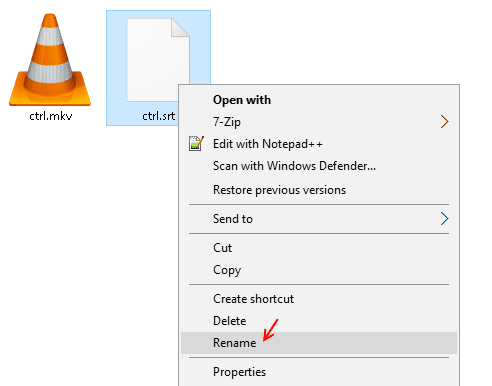
Rename Subtitle File Same As Movie Name And VLC Will Load Subtitle Automatically Every Time You Open Movie


Rename the subtitle file same as movie name (Kept in same folder) and you do not need to load subtitle everytime you play the movie.

In Your PC Just Create A Folder With The Name Given Below And Access Everything


GodMode.{ED7BA470-8E54-465E-825C-99712043E01C}


Visit Https://Www.Google.Com/Sky/ To Explore Space

Hack And Start Using  Airport Wi-Fi By Adding “?.Jpg” At The End Of Any URL


Delete One Word At One Time By CTRL+ Backspace


Bored ! Go To Google Images And Search Atari Breakout


Bored Again Search The Words Below In Google

  • do a barrel roll
  • tilt
  • Google in 1998
  • zerg rush
  • Pacman
  • blink html

Shake The Yotube By Searching Do The Harlem Shake On Youtube


Just Do Shift + Esc TO Start Chrome’s Inbuilt Task Manager


To Close A Tab Just Do A Middle Click On It.


 Open Task Manager  In Windows Directly Press Ctrl + Shift + Esc


Just Shake The Current Active Window By Mouse To Minimize Everything Else


To Capture Exact Steps , Windows Has A Free Screen Recorder For You, Search Psr In Your Computer


I know You use google daily. But Nothing wrong in taking a info dip to find out how many of the Google tips and tricks you know. These hidden google tips are the one which most people are unaware of. Here are a list of useful google searching tips as well as tips and tricks of Google products.

Search “Fun Facts” Or “I’m Feeling Curious” In Google And Feed Your Curiosity

Just search i’m feeling curious in google search Box and just keep clicking ask another question button  to unleash an endless spell of trivia from google.


Listen To Animal Sounds On Google, Just Search “Animal Sounds” On Google


See Your Search History , Go To Https://Www.Google.Com/History/

Only you as a logged in user can see your search data. You can also view, download and Delete Your search data here.
More useful Google URLs : –
  1. https://passwords.google.com – For viewing your stroed passwords in Google and Android
  2. https://maps.google.com/locationhistory –  For viewing your location history.
  3. https://security.google.com/settings/security/activity -For viewing your logging locations to find out if someone else is using your account or not.
  4. https://accounts.google.com/SignUpWithoutGmail – Create a Google account without creating a new gmail account.
  5. https://www.google.com/takeout – Export all of your Google data from Google servers including contacts, gmail messages, your videos from youtube etc.

See Your Location Timeline History On Google


Get Search Results From A Particular Website Only, Search Site:Website.Com Keyword


This is particularly useful if you want the search result from a single website only.

Search For  Keywords Within Quotes Lets You Search For That Exact Set Of Words In Exact Order


Search For Keyword 2010..2015 Search For Results In Range Of 2010 To 2015

Just separate two set of years with two dots and the results will be in that range. You can also pre append another keyword with this year range to get search results for that keyword on this particular range.

Google Around() Lets You Search For Two Set Of Keywords With Definite Keyword Distance


Now, in the search result the first keyword and second keyword will be separated by maximum 3 keywords.

Search This On Google To Discover An Interesting Shape

exp(-((x-4)^2+(y-4)^2)^2/1000) + exp(-((x +4)^2+(y+4)^2)^2/1000) + 0.1exp(-((x +4)^2+(y+4)^2)^2)+0.1exp(-((x -4)^2+(y-4)^2)^2

Explore Space Through Http://Www.Google.Com/Sky/

Search Flights In Google.Com/Flights

Be Creative With Legos On BuildwithChrome


youtube URL hacks to do anything with any youtube video

Youtube is the most used video website in the world. But everyone out there wanna do more with youtube video. They want to download it, bypass age restrictions and they just dont want to see annoying ads. Before writing this post I was unaware of the fact that there are some replica sites leveraging the youtube advantage with the help of which you can do more.


For example, you are watching any video, Just copy the url from the address bar. It would be something like this given below.

https://www.youtube.com/watch?v=V7FTVzcDmrw&t=1s

  1. Just Replace “youtube” with “yout” in the URL  and paste it in your address bar and download mp3 of the video.
  2. Just Replace “youtube” with “ssyoutube” in the URL and paste it in your address bar  to download the video in any quality available.
  3. Just Replace “youtube” with “nsfwyoutube” and paste it in your address bar  to bypass age restriction.
  4. Just Replace “youtube” with “youtubeskip” in the URL  and paste it in your address bar and you won’t see ads.
  5. Just Replace “youtube” with “listenonrepeat” in the URL  and paste it in your address bar to repeat the video automatically .
  6. Just Replace “youtube” with “gifyoutube” in the URL  and paste it in your address bar to convert video into gif format .
  7. Just Replace “youtube” with “listentoyoutube” in the URL and paste it in your address bar to download the audio of the video.

Sunday, 27 November 2016

Prank your friends by using vbs (visual basic script)

Hello friends,

                    In this blog, use can see lots of vbs (visual basic script) code under the category of  computer tricks . By this,You can learn about vbs and also you can prank your friends . 

Note : 
  •  It's better to code in notepad . 
  •  While saving, select an option as All files in Save As type

Warning :
 Be careful, while playing with these codes.It may cause serious damage.There is no responsibility to  author for any damage.

Be a daily visitor & stay updated !!